Account overview
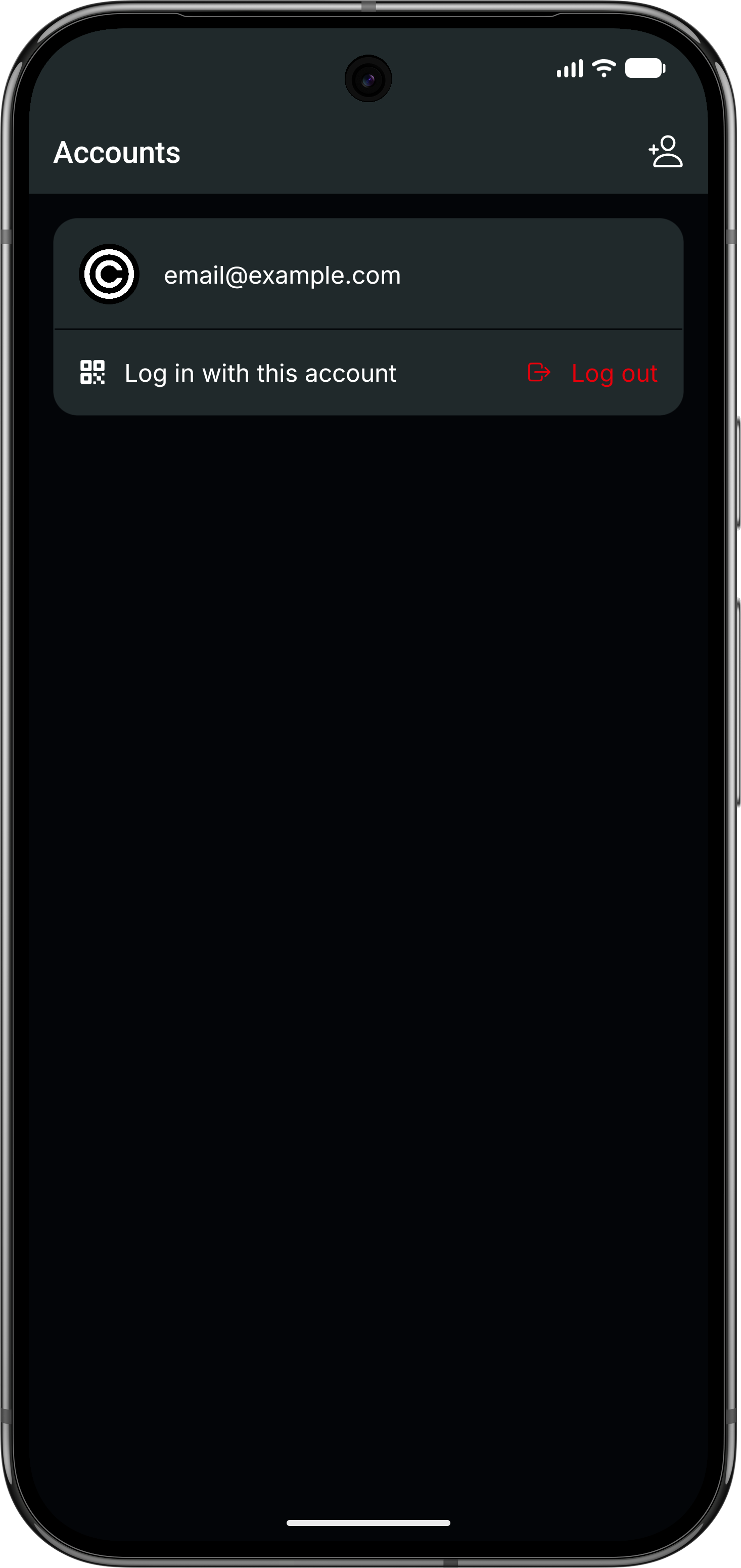
The account overview screen shows a list of all accounts you have added to the CentralAuth app.
Add another account
To add another account to the CentralAuth app, click the Add account button in the top right corner of the account overview screen. You will be redirected to the login screen again to add a new account to the app.
Accounts details
To view the details of an account, click on any email address in the list. You will be redirected to the account details screen.
Log in with an account
To quickly use an account to log in to any application using CentralAuth, click on the Log in with this account button of the account you want to use. A new app authentication flow will be started using the selected account. See the Using the app to log in page for more information about logging in with the CentralAuth app.
Primary account
If you have more than one account added to the CentralAuth app, you can set one of them as your primary account. The primary account will be used by default when you start an app authentication flow from the same device as the CentralAuth app. A primary account is indicated by a star icon next to the email address.
Inactive account
If one of your accounts has become inactive, the account will be marked with a red warning icon. Open the account details to see more information about the inactivity and how to reactivate the account.