Using the app to log in
The CentralAuth app allows you to log in to any application that uses CentralAuth for authentication. There are two ways to use an account in the app to log in to an application: log in on the same device or log in on a different device.
Log in on the same device
If you want to log in to an application on the same device where you have the CentralAuth app installed, follow these steps:
- Open the application you want to log in to.
- Click on the
CentralAuth appbutton on the login screen. - Click on the
Log in with this devicebutton. - The CentralAuth app will open automatically.
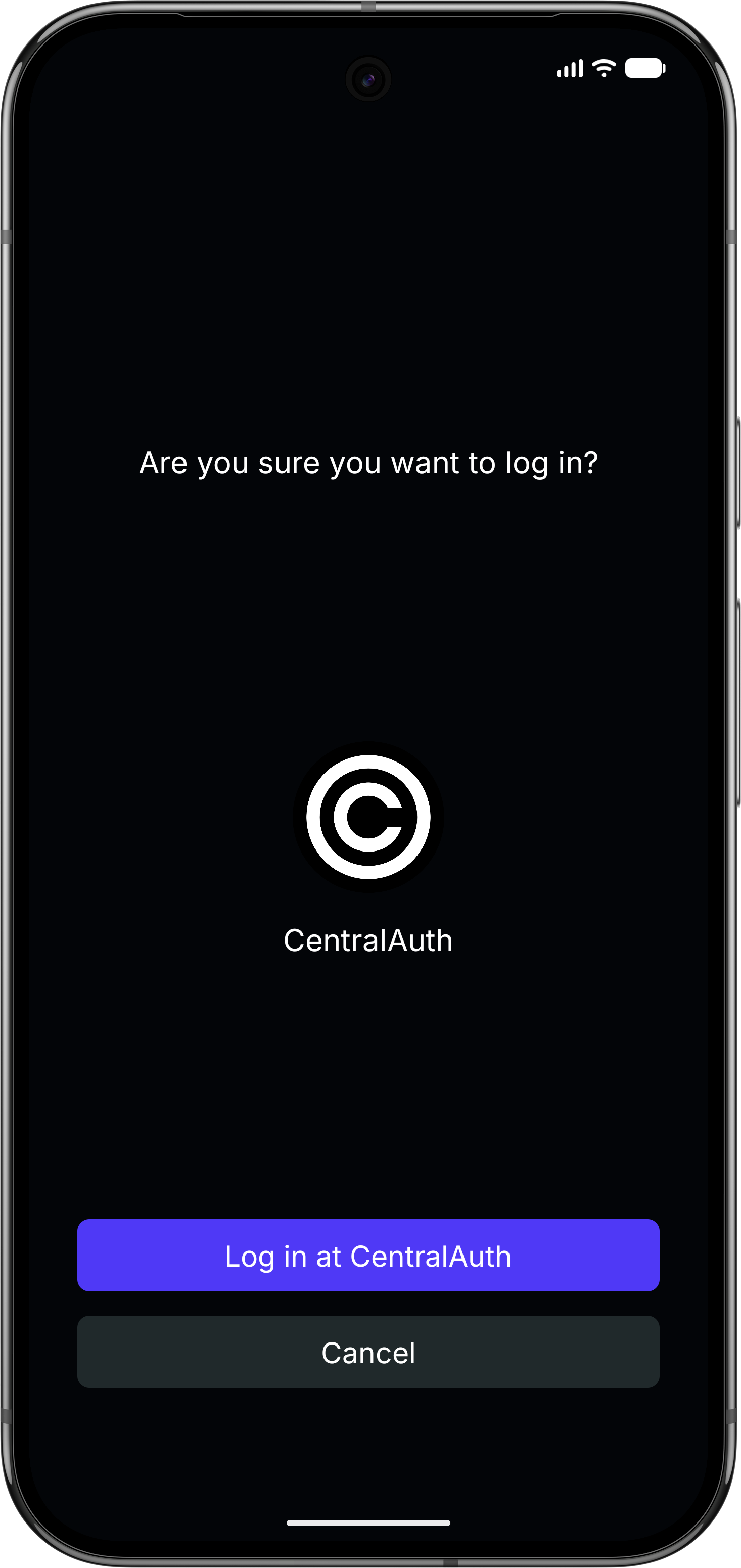
- If you have multiple accounts in the app, the primary account will be selected by default. You can choose a different account if needed by clicking on the
Change accountbutton. - Click on the
Log in to <organization>button. - Authenticate using the method you have set up on your device (e.g. FaceID, fingerprint or PIN code).
Log in on a different device
If you want to log in to an application on a different device than the one where you have the CentralAuth app installed, follow these steps:
- Open the application you want to log in to on the other device.
- Click on the
CentralAuth appbutton on the login screen. - Click on the
Log in with another devicebutton if you see that option. This option will only be available on mobile and tablet devices. If you don't see this option, proceed to the next step. - Open the CentralAuth app on your device.
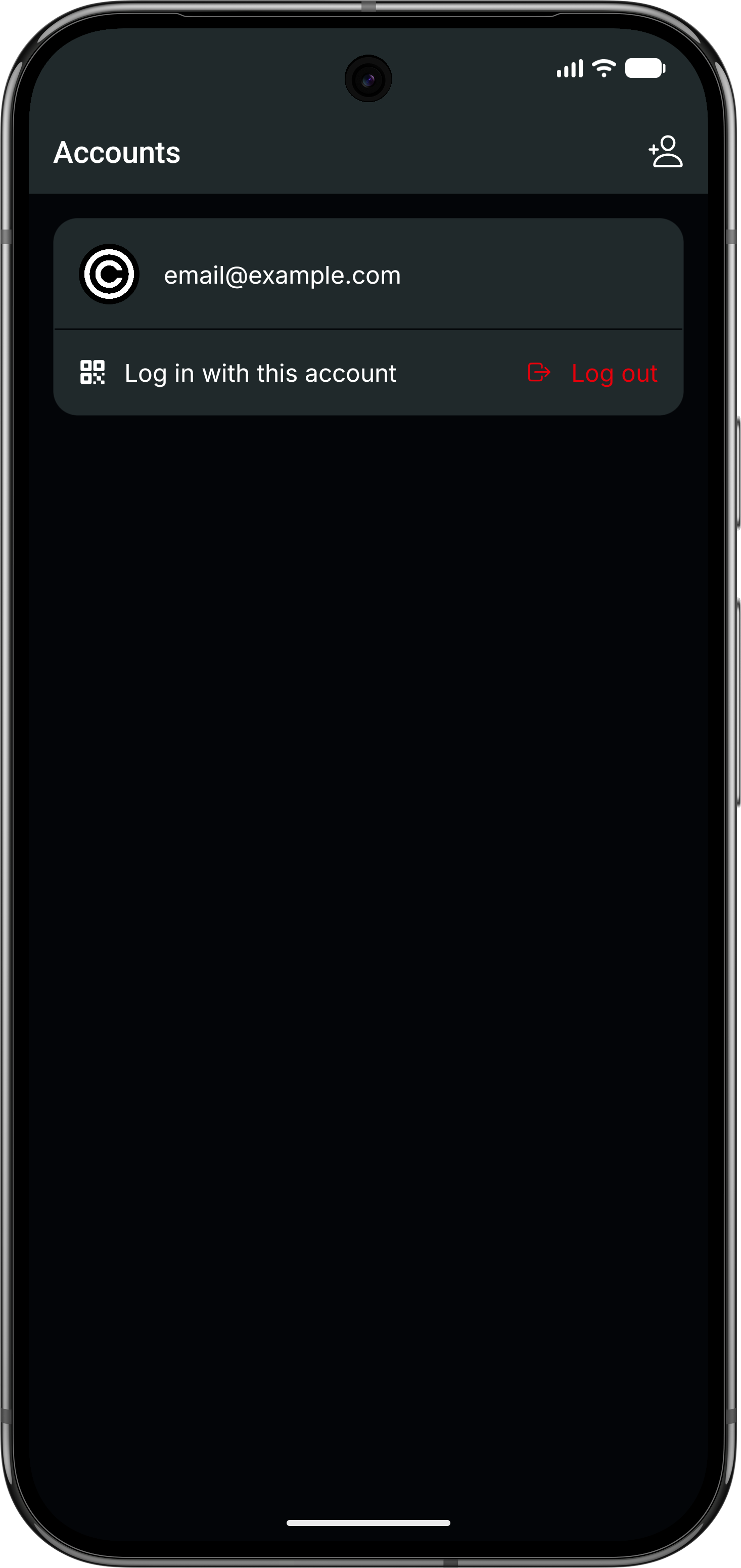
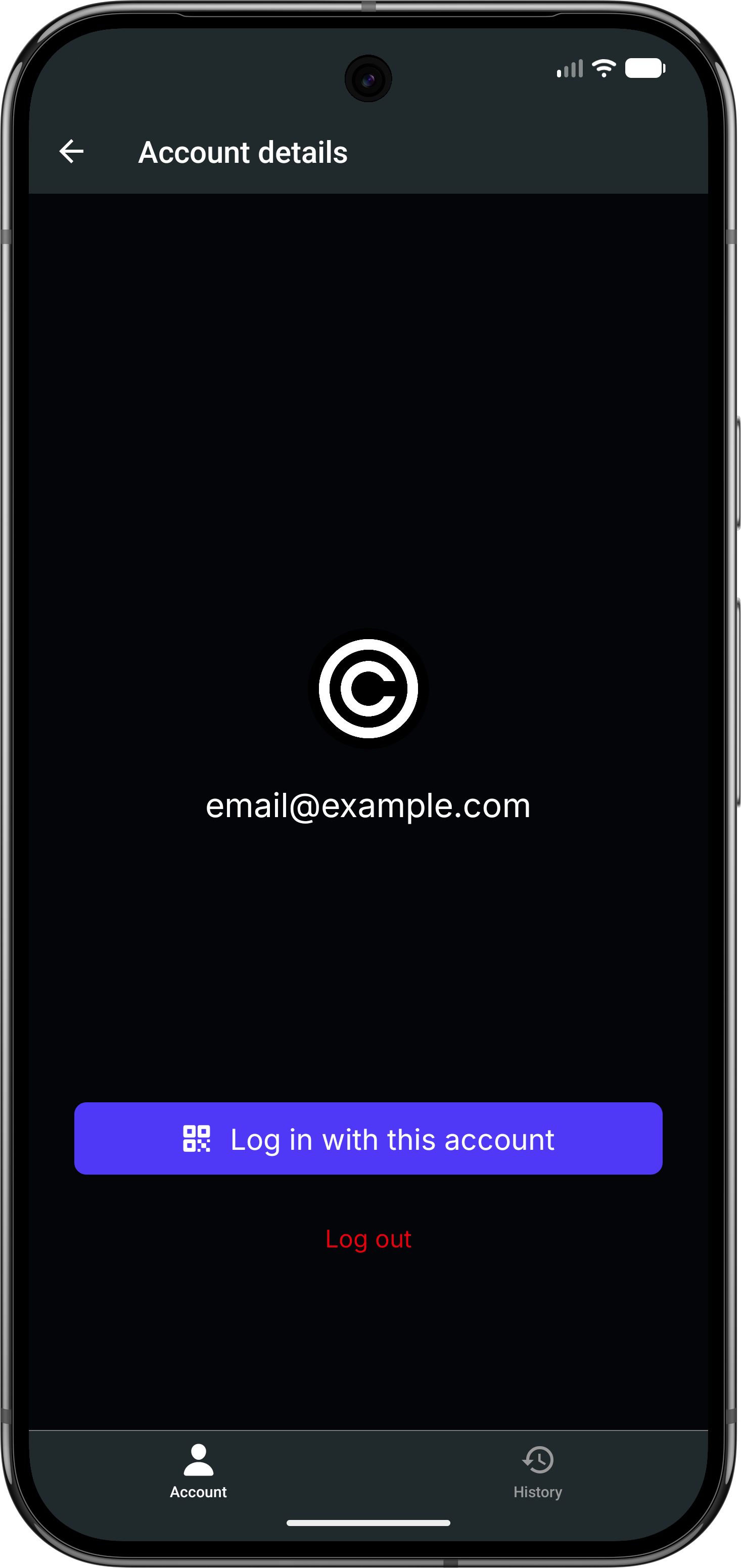
- If you have multiple accounts in the app, select the account you want to use and click on the
Log in with this accountbutton. - Authenticate using the method you have set up on your device (e.g. FaceID, fingerprint or PIN code) to start the login flow.
- The app will display a four-letter code. Enter this code on the other device where you are trying to log in. This will pair both devices.
- The other device will show a QR code. The CentralAuth app will automatically start the camera. If you see a prompt, allow the app to access the camera.
- Scan the QR code on the other device using the CentralAuth app.
- Once the QR code is scanned, the login process will continue on the other device to log you in to the application.
warning
If the authentication process is interrupted on either device after entering the four-letter code, you will need to start the login process again from the beginning on both devices.